
Convert TIFF to WebP — Flatten Scans Into Share-Ready Copies
Your masters stay TIFF. The copies that travel become WebP — 16-bit narrowed cleanly, CMYK re-profiled to sRGB, first page of each file. Originals never touched, nothing uploaded.
Archive TIFF in, distributable WebP out
Drop scanner output or proof TIFFs. 16-bit narrows cleanly, CMYK converts to sRGB, quality is picked per image. Multi-page TIFFs: only the first page is converted. Your originals are never modified.
Supported input formats
- ✓JPG / JPEG — Photos, portraits, web content
- ✓PNG — Screenshots, icons, transparent images
- ✓HEIC / HEIF — iPhone photos, Apple formats
- ✓TIFF — Scans, prints, high-resolution archives
- ✓GIF — Animations and static GIFs
- ✓BMP, PSD & more — Anything ImageMagick can decode
How the conversion works
- 1. DropDrag files or a whole folder into the box below. Folder structure is preserved in the output ZIP.
- 2. AnalyzeEach image is analyzed for entropy and content type. The engine picks per-image quality settings targeting PSNR ≥ 44.5 and SSIM ≥ 0.95.
- 3. EncodeConversion runs on all of your CPU cores in parallel via Web Workers. EXIF, ICC color profiles and geolocation are copied onto the WebP or AVIF output.
- 4. DownloadWhen the batch is done, a ZIP containing every converted file downloads automatically. No re-upload, no waiting on a server.
TIFF is the master. WebP is what travels.
The scanner, the press, the camera raw pipeline all land on TIFF. Everything downstream — Gmail, Slack, CMS uploads, reader apps — wants a flat 8-bit RGB file. This page is the bridge.
Your master is 300 MB. Everything else rejects it.
TIFF is where your scanner, your prepress stack, or your photo pipeline parks the master — 16-bit, CMYK, sometimes half a gigabyte per file. Gmail rejects it. Slack rejects it. The CMS has a 10 MB cap. The client who needs to sign off the proof is on their phone. You don't replace the master. You need the copy that actually travels.
16 bits down to 8, without the banding
WebP is 8 bits per channel. Your scanner TIFF isn't. The down-conversion runs through a color-managed pipeline before encoding, and the adaptive encoder spends its quality budget on the flat regions where banding would announce itself first. On a smooth-gradient scan at normal viewing distance, you won't spot the step.
CMYK proofs become sRGB screen files
A prepress TIFF lives in CMYK with a FOGRA or GRACoL profile. Browsers and mail clients don't render CMYK — they render whatever they feel like, and the client's approval call goes sideways. The converter reads the embedded profile, converts to sRGB through color management, and tags the WebP so a phone browser shows the same colors the calibrated monitor did. On a proof call, that's the whole game.
First page in, one WebP out
Drop a multi-page document scan and you'll get the cover page back. That's the honest scope: single-image TIFFs, which is the vast majority of scanner and camera output. For a 500-page book scan, use a dedicated multi-page splitter upstream first — that's a genuinely different pipeline.
Archive master vs distribution copy
| Criterion | TIFF master | WebP |
|---|---|---|
| Intended role | Archival / prepress master | Distributable copy |
| Typical size per scan | 50–500 MB | 1–5 MB |
| Bit depth | 8, 16, sometimes 32-bit | 8-bit |
| Color space | RGB / CMYK / LAB / YCbCr | sRGB, ICC tagged |
| Multi-page TIFF input | Yes (stacked pages) | First page only |
| Opens in Gmail / Slack / CMS | No | Yes, everywhere |
| Keep the original? | Yes, always | It's the share copy |
Scanner TIFF to distributable WebP in four steps
The workflow a library digitization team or a print shop QA desk runs every day.
- 1
Drop a scanner folder or a proof batch
Drag .tif / .tiff files — single images, a scanner output folder, a stack of proofs. No size cap; the scheduler holds the biggest files back until smaller ones finish. Only the first page of a multi-page TIFF is converted.
- 2
Decode with careful down-conversion
16-bit is mapped to 8-bit with color-managed rounding. CMYK, LAB, LZW, ZIP and JPEG-in-TIFF variants all decode without pre-sorting. Embedded ICC profiles follow the data through the whole pipeline.
- 3
Re-encode with adaptive per-image quality
Every file gets its own encode setting — a short quality search for the point where artifacts stop being visible on that specific image. Scans with text or fine line art get extra headroom so strokes stay crisp; flat scanned paper compresses far harder without the encoder second-guessing itself.
- 4
Export a distributable ZIP, archive untouched
Download a ZIP of WebPs, folder structure preserved. Your original TIFF masters never leave the machine, never get modified, and are still exactly where you left them.
WebP Results
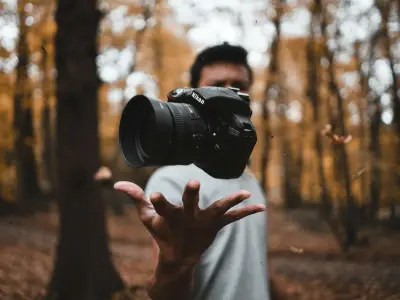
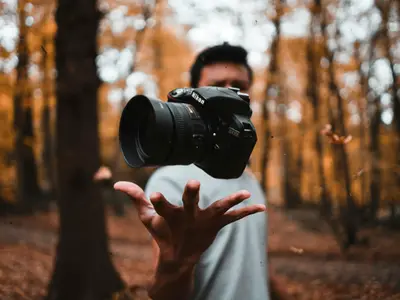
See how WebP compresses real photos with our Excellent preset — the default when you click convert.




Typical WebP savings
Measured on 24 diverse photos at matched perceived quality (SSIM ≥ 0.95)
TIFF to WebP — questions from scanner and prepress workflows
I have a 500-page book-scan TIFF. Can this split it into 500 WebPs?
Not this tool. The pipeline reads the first page of each TIFF, so a multi-page book scan gives you the cover page as a WebP and nothing else. For multi-page document workflows, run a dedicated PDF/TIFF splitter first to explode the file into per-page TIFFs, then feed those here.
Will a 16-bit scanner TIFF look banded after conversion?
Not in practice. The 16-to-8 down-conversion runs inside a color-managed pipeline, and the adaptive encoder spends more quality on flat regions where banding would announce itself first. On a smooth-gradient scan at normal viewing distance, the step isn't visible.
My proof TIFF is CMYK with a FOGRA profile. Will the recipient see the right colors?
Yes. Decoding applies the embedded CMYK profile (FOGRA, GRACoL, SWOP — take your pick) and converts through color management to sRGB. The WebP is tagged with an sRGB profile, so a color-managed browser or phone renders the same intent the calibrated monitor showed. Close enough for client sign-off on a proof copy.
Is WebP an acceptable archival format for my scans?
No, and it's not meant to be. WebP is 8-bit, lossy by default, and doesn't do multi-page containers. Keep the TIFF as your archival master — it stores 16-bit depth, CMYK, multi-page stacks and prepress metadata WebP simply cannot represent. Use the WebP as the distribution copy alongside the archive, not as a replacement.
How big can an individual TIFF be before the browser gives up?
The scheduler meters dispatch against available memory, so very large single scans are queued one at a time rather than in parallel. On a typical 16 GB laptop, multi-hundred-megabyte scanner output converts cleanly. The practical ceiling is a ~100 MP single scan — past that, the 4 GB wasm32 address space starts crowding.
Does my sensitive scan (medical, legal, unreleased) leave the machine?
No. Everything runs inside the browser tab. Open DevTools → Network during a run and you'll see the engine load once and nothing else leave. The cross-origin isolation you may notice in the console is there so the encoder can thread across your cores, not for any remote call.
Can I batch a whole scanning-session folder in one pass?
Yes. Drop the entire folder — library digitization teams regularly feed multi-gigabyte batches through this. Per-worker thread count gets re-derived at dispatch time so a single large TIFF saturates the CPU, while many smaller ones split evenly. Workers recycle every 32 jobs to keep memory stable on long runs.
Why is the first conversion slower than the next ones?
The engine and its worker pool load on the first encode. After that, workers stay warm and get reused across the batch. Subsequent files in the same session start encoding within milliseconds of being dispatched.
Why Choose SciZone?
We're not just another optimizer. We engineered a fundamentally better solution.
| Feature | SciZone(You're here) | Other Optimizers |
|---|---|---|
CPU Utilization How processing power is used | True Multi-ThreadingIntelligently uses all CPU cores without overloading your system | Single-ThreadedUses only one CPU core, wastes available power |
AVIF Encode Speed How fast AVIF actually runs in the browser | Tile-Parallel EncodingEach AVIF image is split into tiles encoded across every core — ~6× faster than single-tile libaom on large photos | Single-Tile Defaultlibaom's internal threading caps around 4 threads per encode, regardless of how many cores you have |
Quality Settings How compression is optimized | Unique Per ImageAlgorithm analyzes each photo and picks optimal settings | One-Size-Fits-AllSame settings for every photo, inconsistent quality |
Metadata & Color Profiles Preservation of image data | Fully PreservedEXIF, color profiles, geolocation. Everything stays intact | Often StrippedColor profiles lost, metadata incomplete |
Quality-Size Balance Optimization results | Perfect BalanceMaximum compression with imperceptible quality loss | InconsistentEither too large or noticeable quality loss |
The Bottom Line
Every photo is unique. Our intelligent algorithm understands this and analyzes each image individually to find the perfect balance between file size and quality. We utilize your computer's full power without overloading it, preserving every detail of your metadata and color profiles.Your files are smaller, faster, and absolutely perfect.🎯