
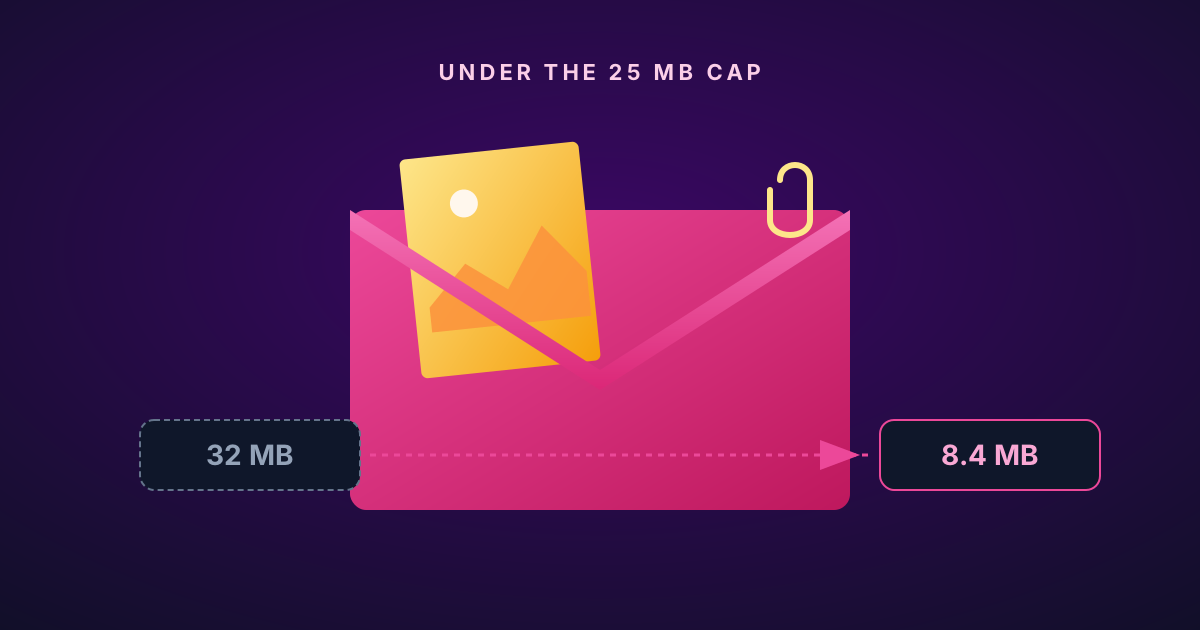
Attachment Too Large? Shrink Your Photos a Third — No Quality Loss, No Upload
The attachment-too-big moment, solved in under a minute. Your photos stay sharp, stay on your machine, and fit inside every major mail server's limit.
Attachment Too Large? Shrink Your Photos a Third — No Quality Loss, No Upload
You’ve written the email. Attached eight photos. Hit send.
“Attachment too large.”
Gmail caps at 25 MB. Outlook at 20 MB. iCloud at 20 MB. Many corporate mail servers cap at 10 MB, set by an IT admin years ago and never revisited. A modern iPhone photo is 4–8 MB each, so eight of them can easily blow past 30 MB before you’ve thought twice.
This is fixable in under a minute, without uploading anything, losing quality, or sending twelve separate emails.
Why the obvious fixes don’t actually work
“I’ll just zip them.” JPG is already compressed. Zipping a batch of JPGs saves maybe 1–2%. Your 32 MB attachment becomes 31.5 MB. Still rejected.
“Apple Mail’s ‘Small’ option.” This resizes your photos — shrinks the actual pixel dimensions — not just the file size. If your recipient wants to print one or zoom in later, that detail is gone permanently.
“I’ll send a Dropbox / WeTransfer link.” Works, but your recipient has to click out of their inbox, possibly create an account, and download a ZIP from an unfamiliar domain. Corporate mail filters often block external file-share links outright. And “here’s a file-share link” feels impersonal for “here are some photos from the trip.”
“I’ll use a free online compressor.” Also works, but your photos — family events, home interiors, kids, document scans — are now on someone else’s server. Free compressors tend to have vague data policies, strip EXIF, and sometimes add watermarks.
What actually works
The trick is WebP. Your attachment, roughly a third lighter. No visible quality difference. Everything done on your machine before you hit send. Eight typical phone photos usually land under 10 MB together — comfortably inside every mail server’s limit — and your recipient still sees sharp, clean images embedded right in the email.
Here’s why “a third” is doing real work in that sentence. A flat document scan can shrink 70%. A high-ISO night shot off a phone might only give up 10%. Rather than make you pick a quality slider and hope, the converter runs a per-image search in the background — it dials compression down until the image is right on the edge of detectable quality loss, then stops. Every photo lands at the most aggressive setting it personally supports. No global setting that either wastes bytes on easy images or mangles the hard ones.
The best part: the whole thing happens in your browser, with nothing uploaded anywhere.
Every major email client has rendered WebP natively for years:
| Email client | WebP support |
|---|---|
| Gmail (web) | Since 2021 |
| Outlook 365 web | Since 2022 |
| Outlook desktop 2019+ | Yes |
| Apple Mail (macOS + iOS) | Since Safari 14 |
| Thunderbird | Yes |
| iOS Mail, Android Gmail | Yes |
| Yahoo Mail | Yes |
The only holdouts are very old corporate Outlook installations (2016 and earlier) and some niche legacy systems. If you’re specifically sending to one of those, export as JPG instead. For everyone else in 2026, WebP is fine.
How to do it
- Put your photos in one folder. Mixed formats — JPG, PNG, HEIC, TIFF — are all fine.
- Open scizone.dev/jpg-to-webp in your browser. Despite the name, it handles every common image format.
- Drop the folder on the page. Conversion starts immediately. A batch of 8–30 typical phone photos finishes in under 10 seconds — faster than the time it took to draft the email. (AVIF would shave roughly another 40% off those file sizes, but AV1 encoding is 5–20× slower, so the same batch runs 1–5 minutes. For email, WebP wins on patience; save AVIF for when you’re archiving rather than attaching.)
- Download the ZIP, extract it, and attach the WebP files instead of the originals.
No account, no size limit, no watermark. You can verify nothing’s uploaded by opening DevTools → Network during the conversion — you’ll see zero outbound traffic from your photos.
For larger batches
Not everything fits in a single attachment no matter how you compress it:
- 5–20 photos: Convert to WebP, attach directly. The whole batch will fit.
- 20–100 photos: Convert to WebP first, then ZIP the WebP files. A 50-photo batch typically lands around 60–80 MB — fine for WeTransfer’s free tier, and your recipient downloads 3× less than with originals.
- 100+ photos: Use a cloud drive link, but share WebP versions. Your recipient downloads a third of the bytes compared to the originals.
One thing to know about EXIF
SciZone preserves all metadata by default: capture date, GPS coordinates, camera model. For most people that’s the right behavior — the recipient’s photo app organizes everything correctly, nothing gets lost.
But if you’re emailing photos to someone who shouldn’t see your location data — say, posting to a public-facing contact — run a pass through ExifTool or a desktop EXIF editor before attaching. The default keeps everything intact.
The bottom line
Drop your photos on the converter — or the HEIC converter if they’re iPhone photos — and attach the smaller WebP files instead. Your recipient sees the images inline in their email client, the attachment fits, and nothing ever left your machine.